.png?width=200&height=58&name=Primary_White_XYCLE_Logo.png-09%20(2).png)
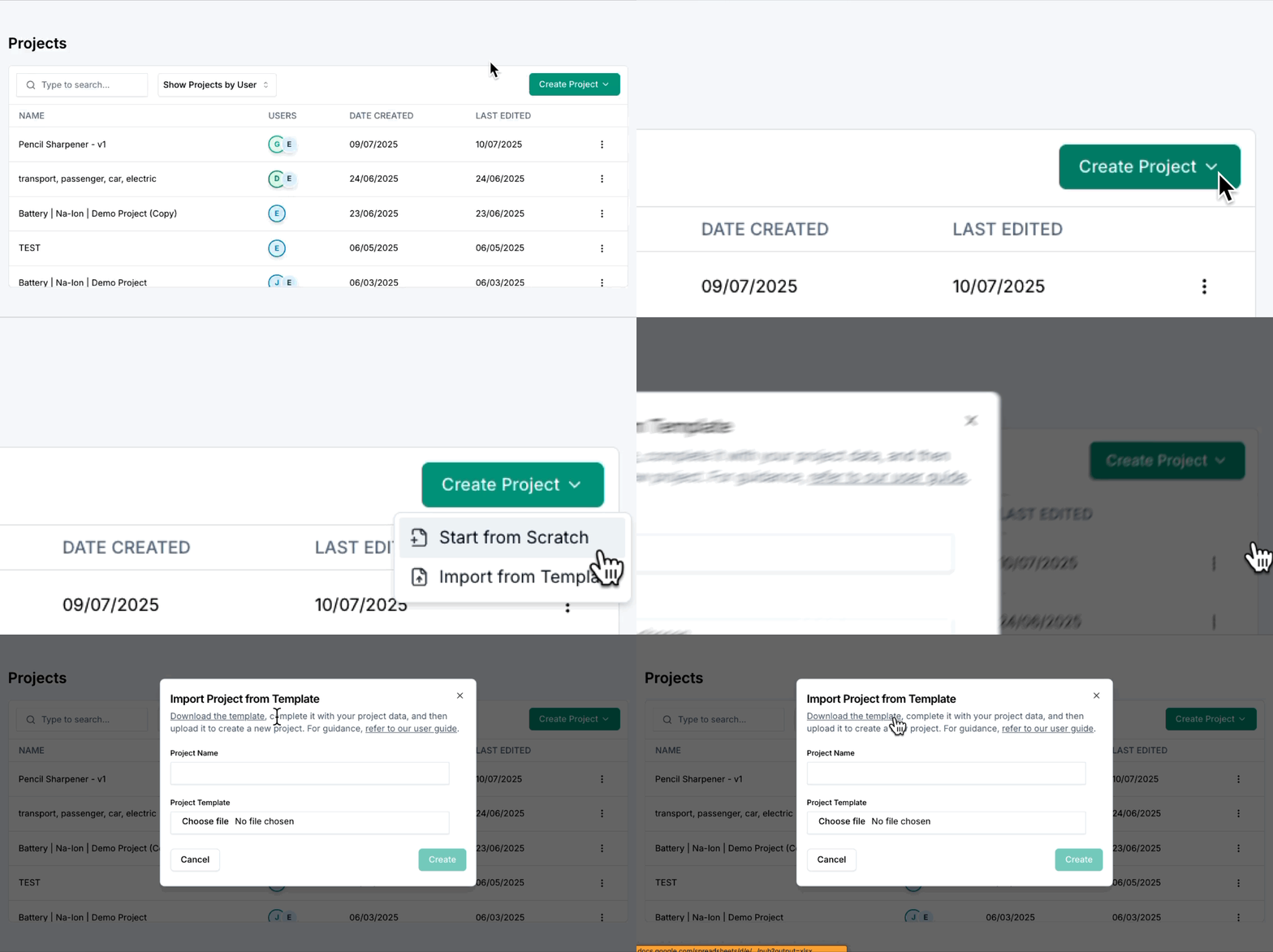
1. Download Import Template
You can download the import template directly within the XYCLE platform, or access it here:
https://docs.google.com/spreadsheets/d/e/2PACX-1vQ...
This template provides the correct format and structure for importing custom data into XYCLE.
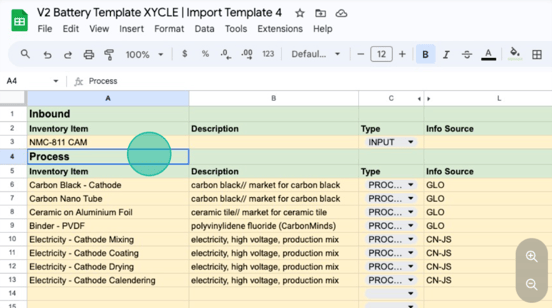
2. Inbound Inventory Items
These rows store the items that feed in from a previous unit process. Ensure the 'Type' is set to 'INPUT'.
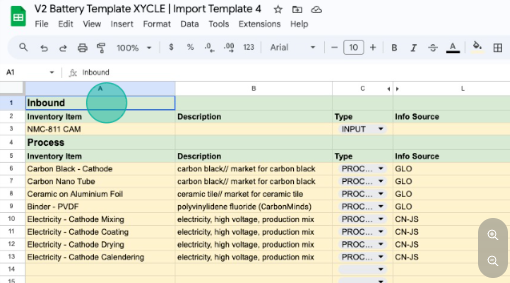
3. Process Inventory Items
This is where all items added into the system at this stage are stored. Ensure the 'Type' is set to 'PROCESS'.
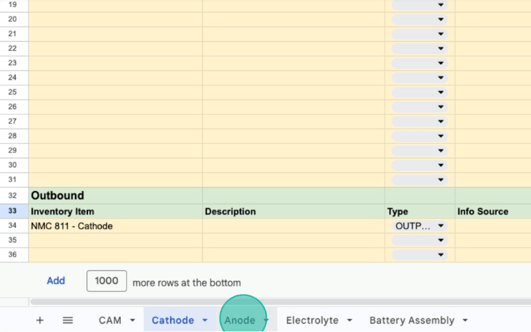
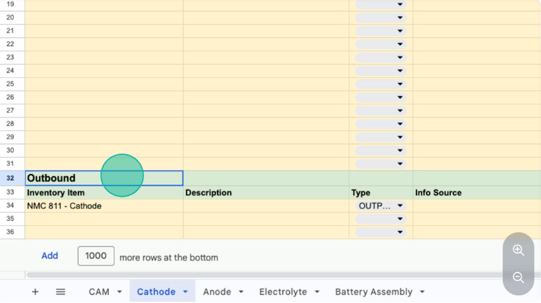
4. Outbound Inventory Items
The products of the system are listed here. Please ensure the 'Type' is set to 'Output'.
5. Template Section
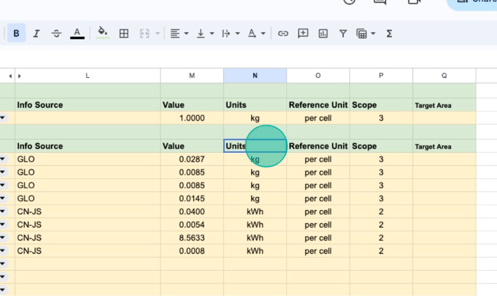
This part of the template contains information such as value, units, reference unit, and scope.
6. Output Products
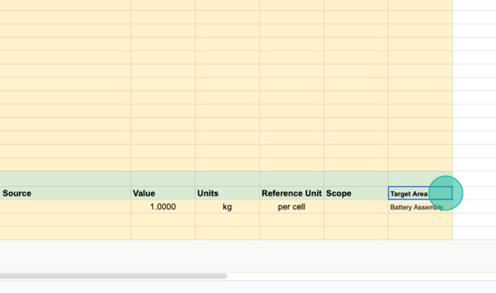
For any products in the 'outputs' section, the target area must be defined and match exactly the name of the sheet into which you want it to flow.
7. Unit Process Sheets
Located at the bottom, each sheet acts as a single unit process. The output target destination must match the exact name (case sensitive) of the destination sheet for it to become an input.
For example, anode would be different than Anode.