.png?width=200&height=58&name=Primary_White_XYCLE_Logo.png-09%20(2).png)
Creating custom characterisation factors allows you to incorporate project-specific data into your impact calculations. This step-by-step guide walks you through how to define, name, map, and apply custom characterisation factors in the XYCLE platform.
1. Select the Project Database
To begin, navigate to the Background Database dropdown and select Project. This ensures any custom characterisation factors you define will be stored within your project and not applied globally.
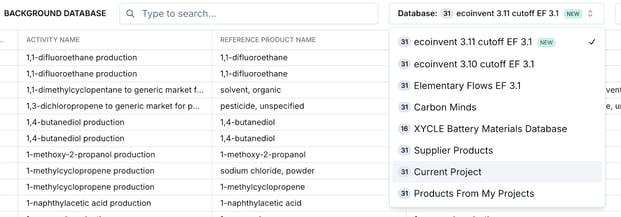
2. Click “New Custom Characterisation Factor”
Once the database is set to Project, click the + New Custom Characterisation Factor option at the bottom of the list. This opens a new row for your custom entry.
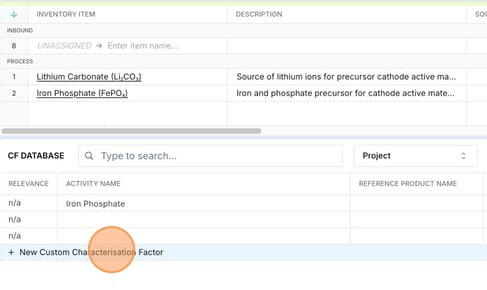
3. Name the New Factor
Click into the “Activity Name” cell of your new row to enter a descriptive name for your custom characterisation factor. This should reflect the material, substance, or activity you want to define.

4. Add the Reference Product and Region
Next, specify the Reference Product Name and Region. These are critical for ensuring your characterisation factor is mapped correctly to the right inventory item and region-specific data.

5. Define the Characterisation Values
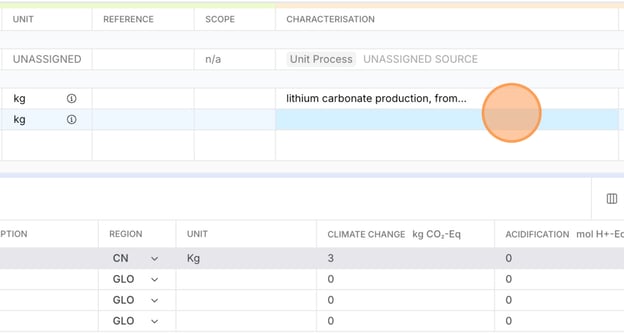
Enter values for each impact category you wish to define. This often includes climate change (in kg CO₂-eq), acidification, water use, or any other category relevant to your project. Be sure to apply the correct unit and ensure consistency across your entries.
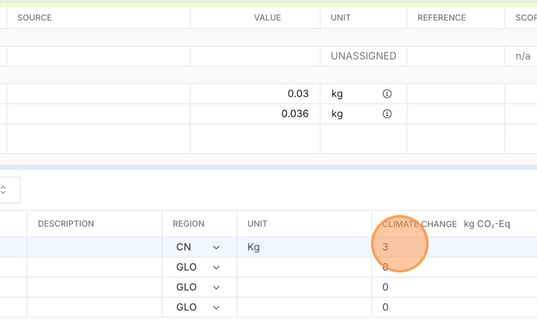
6. Map the Custom Factor
Once your values are entered, click MAP next to the new custom characterisation factor. This prepares the factor for use within your inventory.
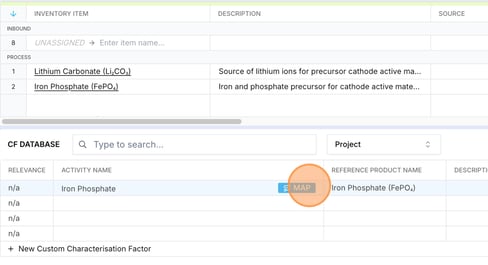
7. Assign the Factor to an Inventory Item
Finally, select the appropriate inventory item (e.g. lithium carbonate production) that you want this factor to apply to. Your custom values will now be used when calculating impacts for this input.
Summary
This process gives you full control over how certain inventory items are characterised, enabling you to reflect specific supplier data, updated environmental values, or alternative modelling assumptions. Always double-check unit consistency and ensure your reference product name matches the one used in your inventory for seamless integration.